Leads Calendar
View your application’s performance, plan your appointments, and organize your time with the Leads Calendar.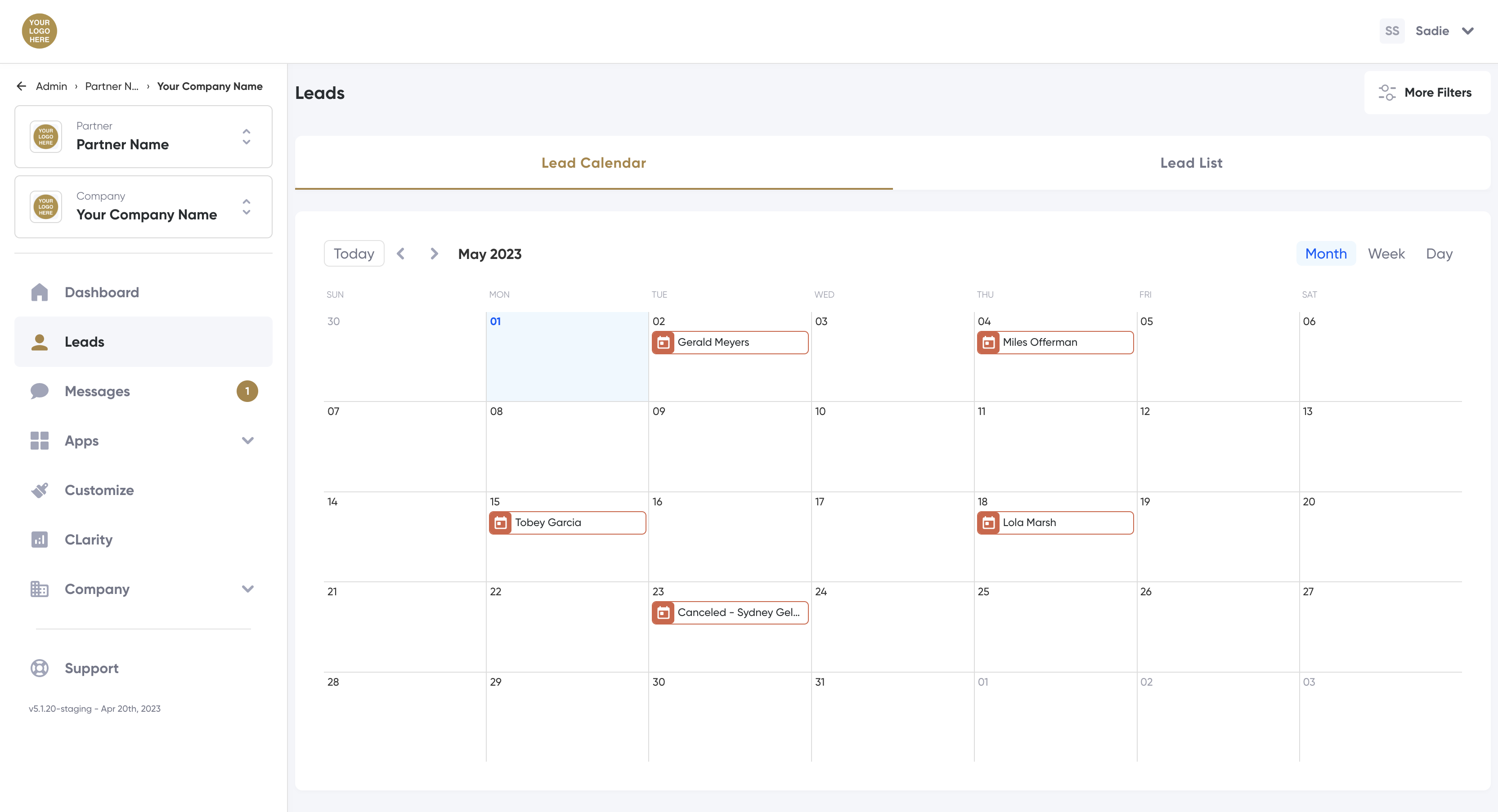
The Lead Calendar displays the date of any scheduled or canceled appointments that were requested through the Schedule Genie module.

To find the date a customer interacted with the application and scheduled an appointment, click on Lead List or the customer record displayed on the calendar.
To change to the List view, click the Lead List tab above the calendar.
Using the Leads Calendar
- Leads displayed on the calendar can be filtered by using the More Filters button at the top right of the screen. Filters are only available if multiple communities or companies are associated with the user's account. For more information about each filter, see the Calendar Filters section below.
- Toggle between past, present, and future dates by clicking on the Today button or the directional chevrons at the top left of the calendar.
- Change the view from monthly, to weekly, or to a daily calendar using the Month, Week, and Day buttons at the top right of the window.
- View leads in a list view by clicking on the Lead List tab above the calendar.
Calendar Navigation
Toggle between past, present, and future dates by clicking on the Today button or the directional chevrons at the top left of the calendar.
- Today: Jump to today’s date on the calendar in the Month, Week, or Day views. The current day is highlighted in light blue.
- Back chevron: Move the calendar to the previous time period. The time period is determined by the Month, Week, or Day views at the top right of the calendar.
- Forward chevron: Move the calendar to the future time period. The time period is determined by the Month, Week, or Day views at the top right of the calendar.
Calendar View
Update the calendar view to monthly, weekly, or daily using the Month, Week, and Day buttons at the top right of the calendar.
- Month: View leads for an entire calendar month.
- Week: View leads for a week beginning Sunday.
- Day: View one day of leads.
Calendar Filters
Leads displayed on the calendar can be filtered by using the drop-downs above the calendar to reduce the information displayed and hone in on specific leads.
Filters are dependent on user roles and permissions.
- Date Range/Interval: Select a predefined date interval or a custom date range to view leads generated during a specific time period.
- Time Zone: Filter results to only include leads from a particular time zone. To update a company's time zone, reach out to your account manager.
- Property Management Company: Filters results to only include those that are associated with the selected management company or companies. For instance, many real estate companies own apartment communities and enlist a property management group to manage one or more properties. Property management companies may need to be set by your account manager.
- Region: Filters results to only include those that are associated with the selected region(s). For example, companies with offices across the country may want to see data for different region segments. Regions may need to be set by your account manager.
- Ownership Groups: Filter results to only include leads that are attributed to a particular ownership group. Ownership groups may need to be set by your account manager.
- Include Test Company Data checkbox: Available only to certain user roles, this checkbox allows users to view data from internal test companies as well as customer companies.
- Only Active Companies: Filter results to exclude leads for companies that are no longer active in The Conversion Cloud.

There is no filter dependency. If a lead or customer does not match all set filters the lead or customer will not be included in the results.
Application Tiles
Application Tiles display a snapshot of your company's performance during the selected time period.
New Leads: The number of new leads submitted over the selected time period. This counts each lead submission and may include lead submissions from the same customer.
Tours: The number of appointments requested over the selected time period.
Live Chats: The number of times the Chat Now Call-to-Action button was clicked over the selected time period.
Offer Claims: The number of promotions or incentives claimed over the selected time period.
Viewing Lead Information
- Log in to the platform.
- Select Leads in the navigation menu.
- The Leads Calendar displays in the main window.
- Locate and click on the customer’s name to open the Customer Information or Lead Details page.